Drop Audio to Cut
MP3, WAV, FLAC, OGG, M4A, AIFF
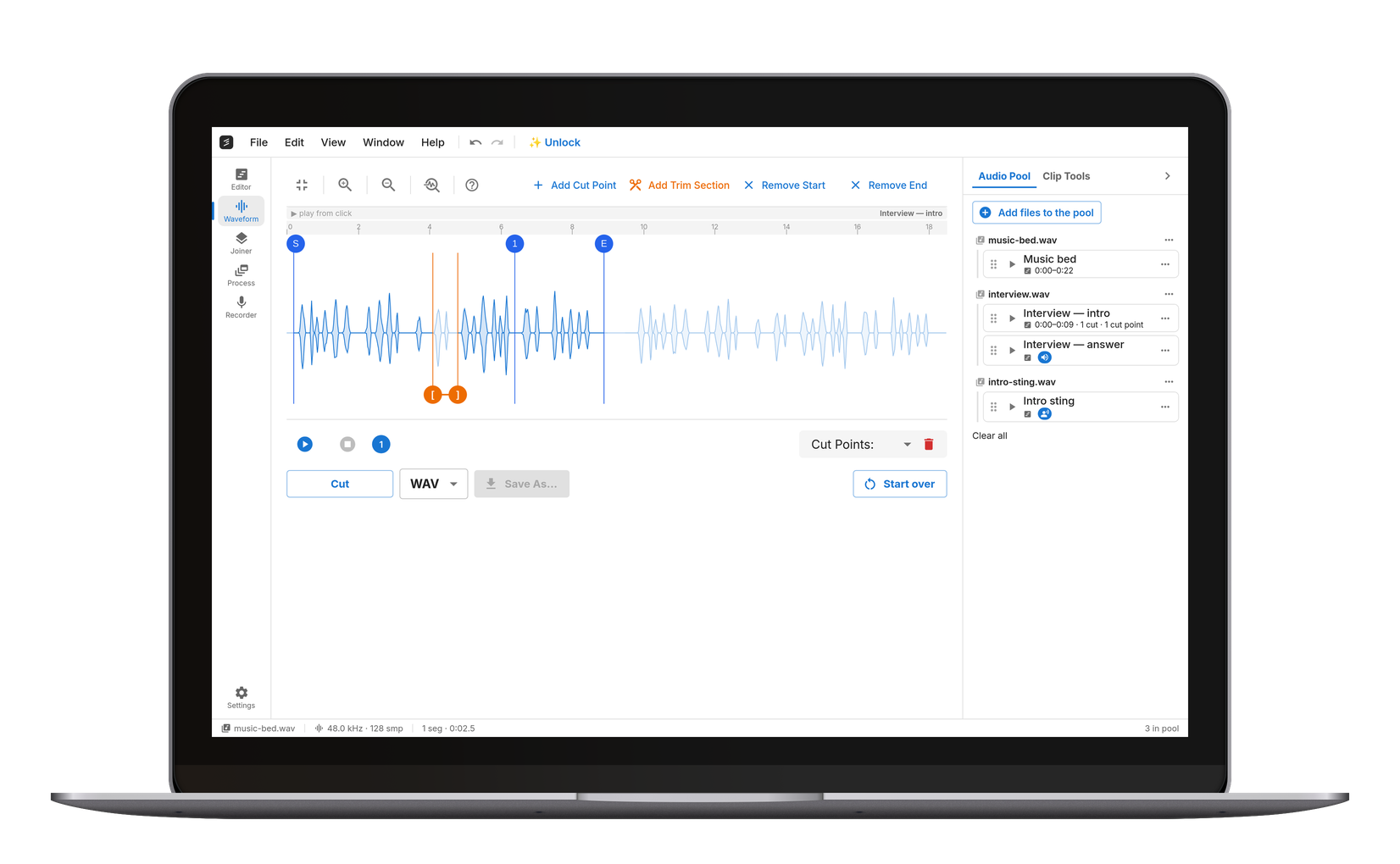
How to Cut Audio Online
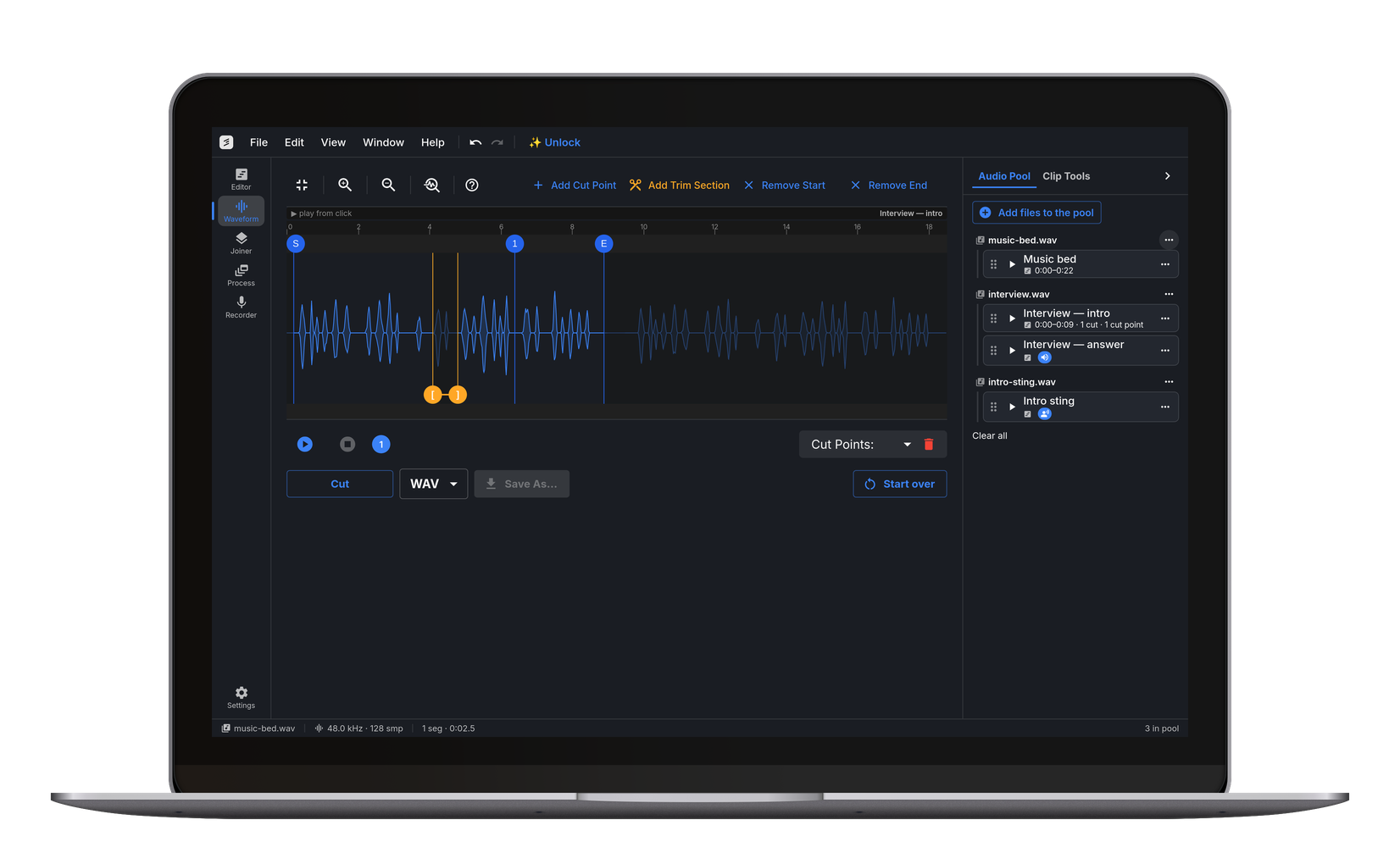
Drop an audio file — MP3, WAV, FLAC, or OGG — and it opens on a waveform with a start marker (S) on its first sample and an end marker (E) on its last. Drag them in to drop the head and the tail, and set cut points between them: each cut point splits the audio there, so two cut points make three pieces. Move only S or E and the cutter simply shortens the file. Click Cut and every piece is exported separately in the format you choose. Everything runs locally in your browser, so your files are never uploaded to a server. Works in any current browser, on a computer or a phone.
Free MP3 Cutter — Cut MP3 Files Online
Drop an MP3 and this works as a free MP3 cutter: drag the start and end markers to the part you want, click Cut, download. No upload, no signup, no watermark. Because MP3 is a lossy format, cutting re-encodes the part you keep — this MP3 cutter encodes at 192 kbps by default through LAME, so the loss stays inaudible on normal material. To cut MP3 with no further loss at all, export the selection as WAV or FLAC instead: same sample-accurate cut, lossless output. Most people looking for an MP3 cutter online want one of three things — shorten a track, lift a section out of the middle, or drop the silence at the start. All three are the same two markers and cut points here.
Trim MP3 and WAV — Shorten a File from Either End
Trimming takes length off the ends, and it is the most common job on this page. To drop an intro, drag the start marker to where the music actually starts — everything before it falls away and the piece you keep runs to the end of the file. Zoom in until individual words or drum hits are visible and put the marker in the gap between two of them rather than through one. As an MP3 trimmer this is usually a ten-second job — one drag and a Cut. To trim audio at both ends, drag the end marker in to where you want the sound to stop as well; Cut then hands you the one piece between them. Up to an hour, length is not a factor: the audio cutter opens an hour-long interview as readily as a three-minute song, because the decoding happens on your own machine rather than on a server with an upload cap. Most files people arrive with are not MP3s anyway — an iPhone voice memo is M4A, a WhatsApp note is Opus, a DAW bounce is a 24-bit WAV — and all of them open here, exporting as MP3, WAV, FLAC or OGG. One thing this page cannot do: take a section out of the *middle* and give you back a single file. Cut hands you the pieces either side, which is the right answer when you want them both and the wrong one when you just want the cough gone. That job has its own tool.
Open the Audio Trimmer →Audio Clipper — Lift a Chorus, Hook or Quote Out of a Track
Where trimming works on the ends, an audio clipper takes a piece out of the middle. Drag the start marker to where the chorus starts and the end marker to where it ends: Cut returns exactly that span, as one file. Zoom in far enough that the waveform shows the bar line and the clip starts on the beat instead of a fraction before it, which is the difference between a loop that sits right and one that limps. It is the same operation a music cutter performs on a song file, and the export format is yours to pick: MP3, WAV, FLAC or OGG, whatever you loaded. Nothing in the free audio cutter changes between the two jobs — same waveform, same markers, same export panel.
Trim a Song into a Ringtone
Cutting a song to length is the first step to a custom ringtone. For fade in and out and a phone-ready MP3 in one place, use the dedicated Ringtone Maker.
Open the Ringtone Maker →Trim Voice Recordings and WhatsApp Voice Notes
Cut silence out of a voice recording, or pull the key moment from a WhatsApp voice note (OPUS/OGG) before sharing it. iPhone voice memos arrive as M4A and load the same way. Processing stays on your device — nothing is uploaded.
Trim Several Files and Merge Them into One
Trim each file to the part you want here, then hand the pieces to the Audio Joiner to combine them in order, with a crossfade at each seam if you want one. Nothing has to be re-downloaded in between — every export lands in the audio pool, and "Use in tool" sends it straight across.
Open the Audio Joiner →Extract Samples for Music Production
Grab a drum break, a vocal chop, or a movie quote and export it as a clean WAV or FLAC ready to drop into your DAW or sampler. The waveform editor lets you zero in on the exact transient you want.
Frequently Asked Questions
The Cutter splits one file into several at the points you mark, and shortens a file by dropping everything outside its start and end markers. The Trimmer takes marked sections out and hands back a single file. Cutting an album side into tracks or lifting a clip out to save on its own is this page; cleaning up a recording by removing a cough or a false start is the Trimmer.
Drag your MP3 onto the editor (or click to pick a file). Drag the start marker (S) to where the part you want begins and the end marker (E) to where it should stop — you can zoom in for precision. Click Cut, choose MP3/WAV/FLAC/OGG as the output, and download. Works on any device with a modern browser.
Yes, completely. No account, no watermark. It is a free MP3 cutter that runs in your browser, and it stays free because there is no server bill behind it — your own device does the work. There are two limits: one hour per file, and ten exports a day.
Slightly, if you export back to MP3 — the format is lossy, so the part you keep gets re-encoded once. We encode at 192 kbps by default with LAME, which keeps that inaudible on normal material; 128 kbps is free too, 320 kbps comes with Pro. To cut MP3 with zero further loss, export the selection as WAV or FLAC instead. The cut itself is sample-accurate either way.
You can trim the song here, but our dedicated Ringtone Maker handles the whole job in one place — picking the clip, fades, and a phone-ready MP3. Start there if a ringtone is your goal.
Share the recording to your computer (or use it directly on mobile), drop it into the cutter, and trim. WhatsApp voice notes are OPUS/OGG, and most modern voice recorders can export MP3, WAV, or FLAC — all of these load fine. Export the trimmed clip as MP3 for universal playback.
No. Processing runs locally in your browser, and the audio never reaches a server.
There are no file size caps and no watermarks. The limit is length, not size: one hour per file, for every format. Past that, the free version refuses the file; cut.audio Pro offers to split it into parts in the browser where the format allows; on Windows, the same Pro lets cut.audio Studio open it whole (up to four hours).
Export is MP3, WAV, FLAC, or OGG. Import is wider than that: MP3, WAV, FLAC and OGG are read directly, and so are M4A, AAC, Opus, MP4, WebM, AIFF, AMR and WMA — so an iPhone voice memo or a WhatsApp voice note loads without converting it first. MP3 encoding runs at 192 kbps by default for high-quality output.
Yes. Drop it in like any other file. M4A is what an iPhone voice memo is, AAC is what most messaging apps and cameras produce, and both open here — the engine reads the container itself, the trim runs on the audio inside it, and the result comes back as MP3, WAV, FLAC or OGG. Exporting back to M4A or AAC is not on offer: export is MP3, WAV, FLAC or OGG.