Drop Audio to Trim
MP3, WAV, FLAC, OGG, M4A, AIFF
How to Trim an Audio File Online
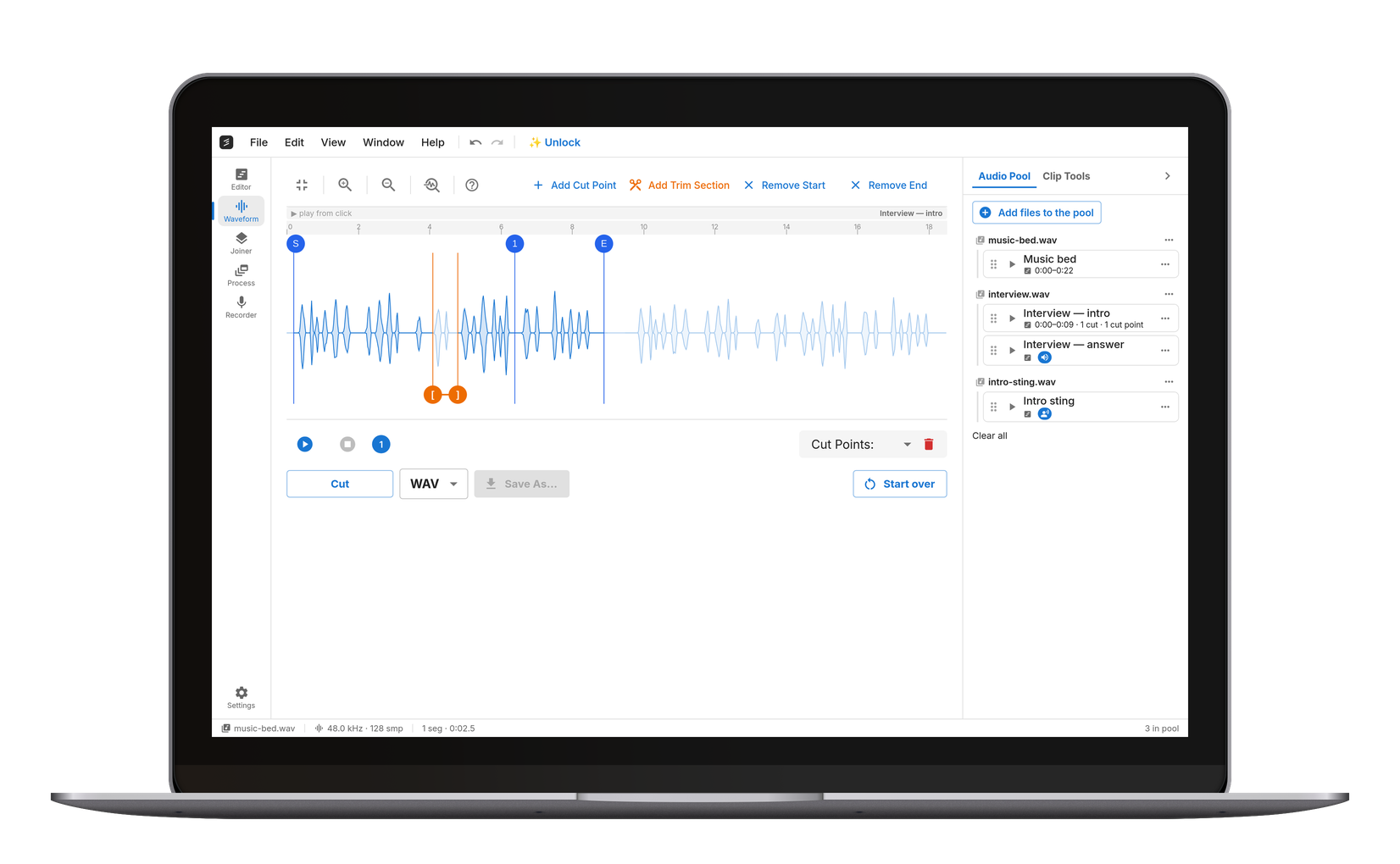
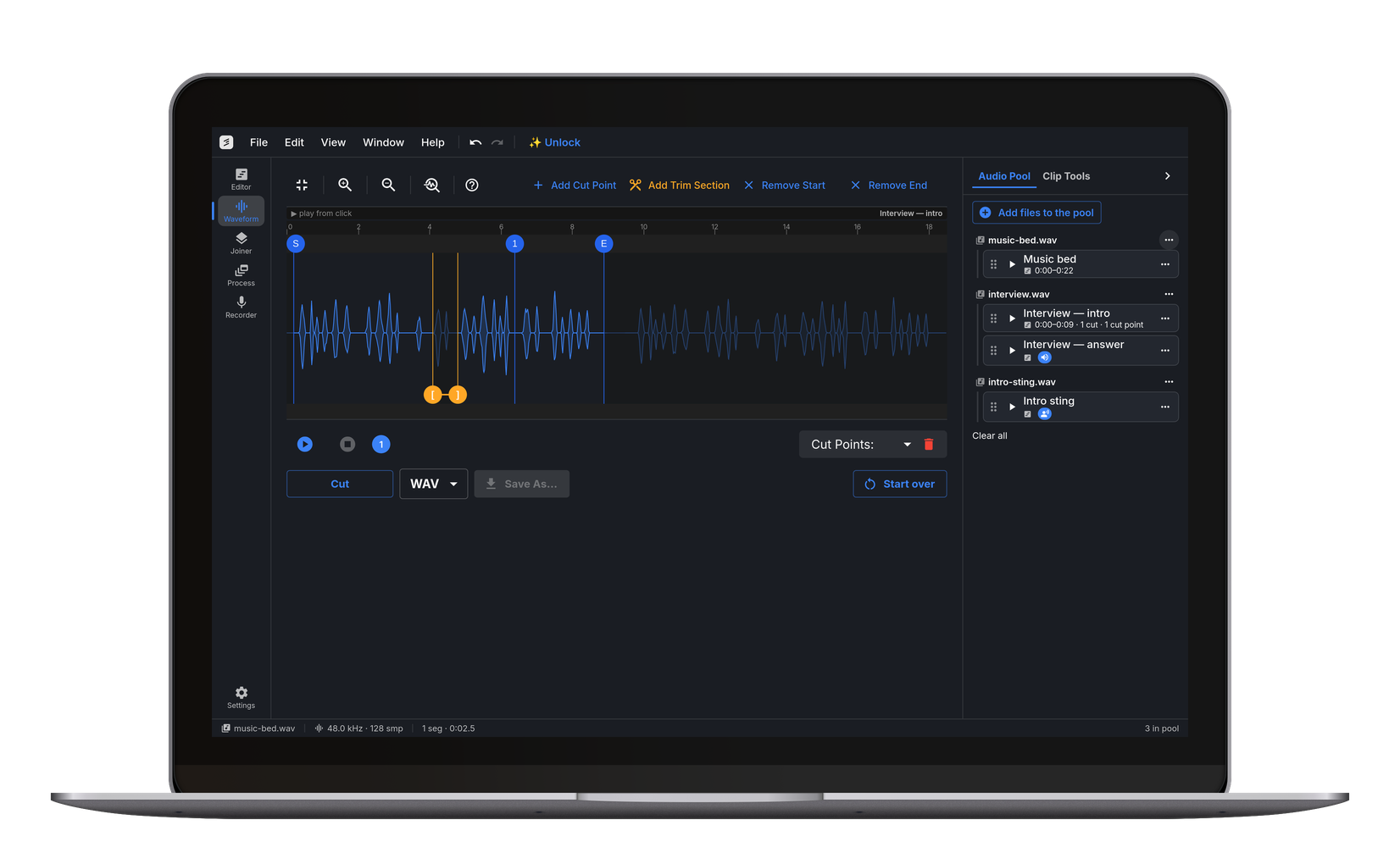
Drop an MP3, WAV, FLAC or OGG file onto the page and it opens straight in the waveform editor — no upload, no account, nothing to install. A start marker (S) sits on the first sample and an end marker (E) on the last: drag S to where the audio should begin and everything before it goes; drag E in and the tail goes. To take something out of the middle instead, press Add Trim Section and drag the orange brackets around it, as many times as the recording needs. Play skips every marked part, so the preview is exactly what the export will be. Press Trim, choose MP3, WAV, FLAC or OGG, and one trimmed file comes back.
Trim the Start and End of a Song or Recording
Taking length off the ends is the common job, and it is two drags. Drag the start marker to where the audio should actually begin and the end marker to where it should stop. The waveform zooms far enough to place either marker in the gap between two words or two drum hits rather than through one, and the file you get runs from the first marker to the second with nothing else altered. Up to an hour, length is not a factor — a three-minute song and an hour-long interview open the same way, because the decoding happens on your own machine rather than on a server with an upload cap. If the ends are all you need, you never have to add a trim section at all.
Remove a Section from the Middle
A cough halfway through an interview, a false start before the good take, a phone ringing behind a podcast answer — press Add Trim Section, bracket it, and it is absent from the export. Several sections come out in a single pass and you still get one file back, not a folder of pieces to reassemble afterwards. One thing worth knowing before you place the brackets: the kept parts are joined end to end without a crossfade, so a join that lands in the middle of a sustained note or a held vowel can be audible. Put each bracket edge in a pause where you can — in speech that is usually where the unwanted part already begins and ends — and zoom in far enough to see that you are in the quiet gap rather than through a sound.
Trimmer or Cutter?
The Trimmer takes material out and hands back one file — right for cleaning up a recording. The Audio Cutter is its sibling: it splits a file at cut points into several separate files — right for slicing an album side into tracks, or lifting one clip out to keep on its own. They share the same engine and the same waveform, and a result from either lands in your audio pool ready for the next tool.
Open the Audio Cutter →Which Files It Opens, and Where They Go
Export is MP3, WAV, FLAC or OGG. Import is wider than that: those four are read directly, and so are M4A, AAC, Opus, WebM, AIFF, AMR and WMA — so an iPhone voice memo or a WhatsApp voice note trims without being converted first. Exporting back to M4A or AAC is the one thing not on offer. Wherever the file came from, it does not leave the device: the decode, the trim and the encode all run in this tab, which is the thing an audio trimmer that uploads to a server cannot offer you.
Frequently Asked Questions
Drop the file onto the page and it opens in the waveform editor. To shorten the ends, drag the start marker (S) to where you want the audio to begin and the end marker (E) to where it should stop. To take something out of the middle, press Add Trim Section and drag the orange brackets around it, repeating for as many sections as you need. Press Play to hear the result with every marked part skipped, then press Trim and choose MP3, WAV, FLAC or OGG. Nothing is installed and nothing is uploaded.
That depends on where the trimming happens. A tool that trims on a server has to upload your file first. This one never uploads: the decode, the trim and the encode all run on your own device. There is no account either, so there is nothing a file could be linked to.
It can, and where you place the brackets decides it. The kept parts are joined end to end without a crossfade, so a join landing in the middle of a sustained note or a held vowel can be audible. Placing each bracket edge in a pause avoids it — in speech that is usually where the unwanted part already begins and ends. Zoom in on the waveform so you can see that both edges sit in the quiet gap rather than through a sound.
Yes, and it is the main thing this tool does that a start-and-end trimmer cannot. Add as many trim sections as the recording needs; they all come out in a single pass and the result is one file. Playback skips every marked section, so you can listen through the whole thing and check it before exporting.
The Trimmer takes material out and returns one file. The Cutter splits one file into several at the points you mark. If you want a recording cleaned up — ends shortened, a mistake removed — this is the right page. If you want an album side turned into separate tracks, or one clip lifted out and saved on its own, use the Audio Cutter. They share an engine, so the waveform and the export options are the same either way.
No. It runs in the browser you already have, on a computer or a phone. There is nothing to install and nothing to keep updated. The usual reason to prefer an installed audio trimmer app over a website is that a website might upload your file; that reason does not apply here, because the work happens on your device either way.
Yes. Drop an MP3, mark what should go, and the trimmed file comes back as MP3 again — or as WAV, FLAC or OGG if you would rather. The MP3 is re-encoded once on export.
Export is MP3, WAV, FLAC or OGG. Import covers those four plus M4A, AAC, Opus, WebM, AIFF, AMR and WMA, all read by the engine itself — so an iPhone voice memo, which is M4A, and a WhatsApp voice note, which is Opus, both load without converting them first. Exporting back to M4A or AAC is not on offer, so the trimmed file comes back as one of the four.
Only if you export to a lossy format. The trim itself is a sample-accurate copy of the parts you kept, with no processing applied to them, so exporting as WAV or FLAC preserves them exactly. Exporting as MP3 or OGG re-encodes once; MP3 runs at 192 kbps by default through LAME, which stays inaudible on normal material; 128 kbps is free too, 320 kbps comes with Pro.
There is no size cap and no watermark, but there is a length limit: one hour per file, for every format. Past that, the free version refuses the file; cut.audio Pro offers to split it into parts in the browser where the format allows; on Windows, the same Pro lets cut.audio Studio open it whole (up to four hours).